Tutorial 0 - Getting started
Danger
Rebar addon development is not supported currently. Rebar is changing rapidly, and your addon may break in horrific ways when the next Rebar version is released. You can still make addons, but beware that you may have to make substantial changes to keep them up to date.
Foreword
So, you want to write a Rebar addon? Good for you! We've written this set of tutorials to try and make it as easy as possible. That being said, basic technical and programming knowledge is required - if you've never used an IDE or a compiler, or never written a for loop, you will have a hard time following.
Some housekeeping before we start...
Prerequisites
We'll assume that
- you know the basics of Java programming.
- you have a Github account and some way to use git from your computer - we recommend Github Desktop if you're new to git.
- you've installed and set up IntelliJ and have some idea of how to use it.
Prior plugin development knowledge isn't required, but it is certainly useful!
Rebar vs Pylon
It's important you understand the difference between Rebar and Pylon before starting. Rebar is a library that provides a bunch of useful functions for creating new blocks, entities, etc. Pylon is an addon which provides a bunch of 'base' content.
Whether your addon requires Pylon or not is up to you. The addon template includes Pylon as a dependency, but this is easy to change.
A note on Kotlin
Though you can write addons in Java just fine, more experienced Java programmers might be interested in Kotlin. This is an alternative to Java which is much nicer to work with (especially in terms of syntax!) and has some cool features that Java is missing. Rebar is written in Kotlin.
'I'm stuck, help!'
- Read the errors if applicable
- Google the problem if applicable (LLMs tend to be very unreliable for Paper/Rebar/Pylon development)
- Read the relevant tutorial if one exists
- Look at the relevant documentation if it exists
- Join the Pylon Discord and, if possible, use the search bar with keywords related to your problem, to see if someone has asked it before
- Ask for help on the Pylon Discord
Now let's get into it!
Setting up
Forking the template
Rebar has an addon template you can use, which comes with everything you need to write a Rebar addon. Create a fork of the template. Then, clone your fork.
Next, open your fork in IntelliJ.
It might take a few minutes for IntelliJ to import the project.

What's in the template?
The template is built with Gradle. There are two files in the root of the directory - gradlew and gradlew.bat which are Gradle wrappers. If you're using IntelliJ, you won't need to worry about them. There's also build.gradle.kts which provides Gradle with instructions on how to build your project.
build.gradle.kts and gradle.properties contain the top-level information about your project - name, version, Rebar version, main class, and group. Have a look through these files and ensure you change these accordingly. If you're confused about the 'main class' and 'group', this might help.
Next, the code. There is an example block and an example item in the addon already. We've also got the main addon class, ExampleAddon.java.
In this tutorial, we'll add a new item from scratch to show how it's done.
Running a test server
The addon template comes with a 'run server' task which you can use to run a test server right in IntelliJ. Just open the Gradle menu and find and double click the runServer button. This will start a new server, creating a run folder in your project root which will contain the server. (If you are not in IntelliJ, simply run ./gradlew runServer) You can modify this server however you want - add plugins, change configs, whatever!
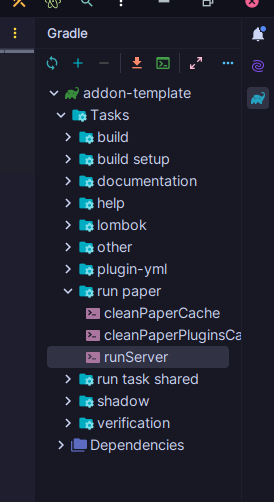
You should see a console pop up with the server output. It'll take a minute or two to download the server executable. It'll fail to start on first run because you'll need to accept the EULA. Go into the run folder that was just created and accept the EULA in eula.txt, then run the runServer task again.
To shut down your server, type stop in the console or use /stop ingame.
Danger
Do not stop the task using the stop button in IntelliJ, because this will not shut down the server. You will then probably be unable to kill the server. The server will become immortal. All of reality will be consumed. N̴o̶t̵h̶i̴n̴g̸ ̵a̶n̵d̷ ̸n̷o̷ ̴o̶n̸e̸ ̸i̷s̵ ̶s̸a̴f̴e̷.̵ Y̶̲̏O̵̫͘Ư̸͓ ̸̪̀S̸͚͊H̷̭̓A̵̢̾L̷̘͋L̷̻̿ ̴̾͜A̸̤̿L̸͇̾L̷̟̕ ̸̫̈B̴̊ͅÈ̴̹ ̴̺̉D̸̰̓Ë̵̪S̷̪̚Ṭ̸͒R̴̹̓Ǫ̵̓Ȳ̴̥Ê̶͙D̶̰̑ ̵͉͘B̷̘̌Y̴̽ͅ ̴̙̈T̷͚͒H̷̤͂Ẽ̷̥ ̸̨͗Ą̵̾L̴̦̒M̵̗͠I̵̱͛G̸͈͝H̷̫̀T̶̰̋Y̸͎̚ ̵̦̈́J̸̣̑V̴̭̌M̸̗̋.
Once the server has started, you can connect on localhost:25565. Make sure you give yourself admin permissions by typing op <username> in the console.
The addon template has an example item and an example block by default. Try using /rb give <user> exampleaddon:example_item to get the example item.